To insert new text into PDF, select the Text tool and then click the location in the document where you want to type. You can type directly on the page, and clicking on an empty space will confirm the content. Check marks are added using a separate Check tool.
Before starting
Prepare the PDF or PNG·JPEG document. PDFlick edits the newly added characters and check marks. It does not provide a function to directly change the characters printed on the original PDF or to recognize characters in a scanned image. If it is an application form with blank spaces, you can place new text in those positions.
The selected document and input content will be processed on your device. If you refresh or close the tab while editing, your work will be lost, so please download the results before closing the screen.
Typing text on a document
- Select a file in PDF edit.
- Select the top Text tool.
- Click the location in the document where you want to insert text and enter the content.
- Press Enter to start a new line. Click elsewhere or press the Done button to finish entering text.
- To edit again, double-click the text or click Edit Text in the selection tool.
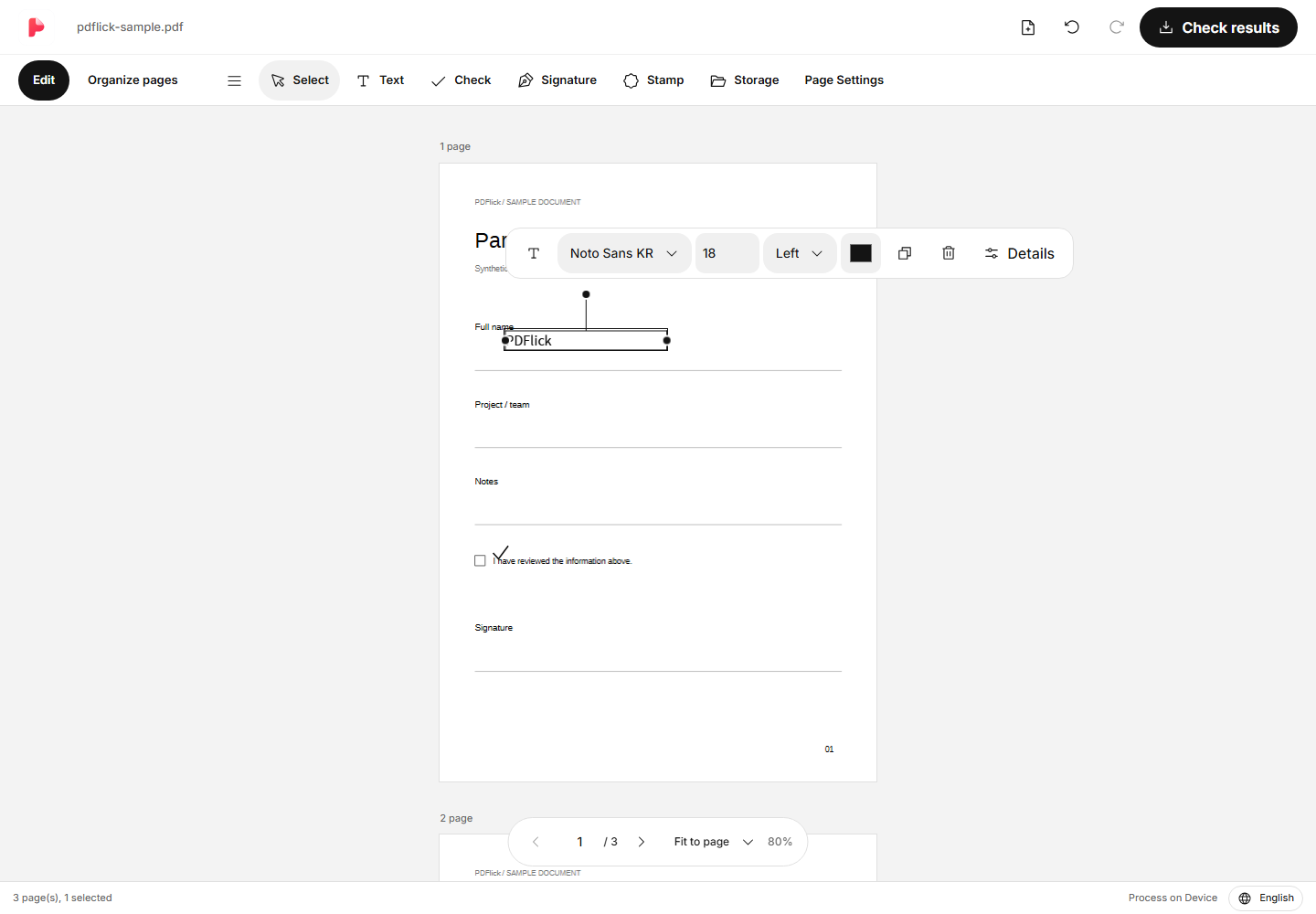
The initially displayed 'Text Input' is a placeholder. Empty boxes where no actual content has been entered will be removed after finishing input and will not be output to PDF. When pasting text, check the line breaks and width.
Adjusting text size and position
When you click on the text you have finished entering, a toolbar will appear nearby. You can change the font, font size, color, and alignment. Moving the left and right handles adjusts the box width and line breaks. Grab the selected text box and move it to the desired location.
The arrow keys move 1pt in the screen direction, and Shift and the arrow keys move 10pt each. While typing text, the arrow keys move the cursor. If precise coordinates or line spacing are needed, open Details to adjust.
Check mark and delete
Select the check tool and click the location where you want to place the check. The check mark is printed as a line, not a font character, so there is no need to check if the font has a check character. After selecting, you can adjust the size and color.
To delete an element, finish typing and then select the element, then press Delete or Backspace. While typing characters, only the characters will be deleted, not the entire element. If you make a mistake, use the undo button at the top.
When the input is different from expected
- If you click on the text but it doesn't get edited, double-click or click Edit Text. A single click selects the element.
- Characters not available in the font are displayed as errors. Load a local font supported in Details or modify the character.
- If multiple lines are needed, increase the box width or reduce the font size to prevent exceeding the document boundaries.
- Originally, clicking on the document text does not allow editing. This tool edits the text that has been added.
Save as PDF
Click the Check Results at the top and look at the actual generated page. After checking that the text is not cut off and the check marks are in the correct positions, download the file. After requesting the download, check the file in the browser's download list.
If a signature is also needed, please continue to refer to how to insert a signature drawn directly on PDF.
Now apply it to my document.
The file content is processed in the current browser.
Getting Started with Edit PDF