To combine multiple PDF into one file, select the files together and arrange them in the desired order in Organize Pages. You can also attach PDF and PNG·JPEG images in the same task.
Before opening the file
It is easier to work if you prepare the documents to be merged and think about the final page order. Since the order selected in the file selection window may be different from what you expect, be sure to check the thumbnail order after opening the documents.
PDF containing passwords or digital signatures cannot be edited. PDF with forms, comments, links, or bookmarks may behave differently after page reorganization, so the resulting warning and the actual file should be checked.
Combine multiple files into one task
- Open PDF Merge & Page Sorting.
- Select the PDF to merge along with the image.
- Check the contents of each page on the page organization screen.
- If there are any missing files, press Add File to attach them.
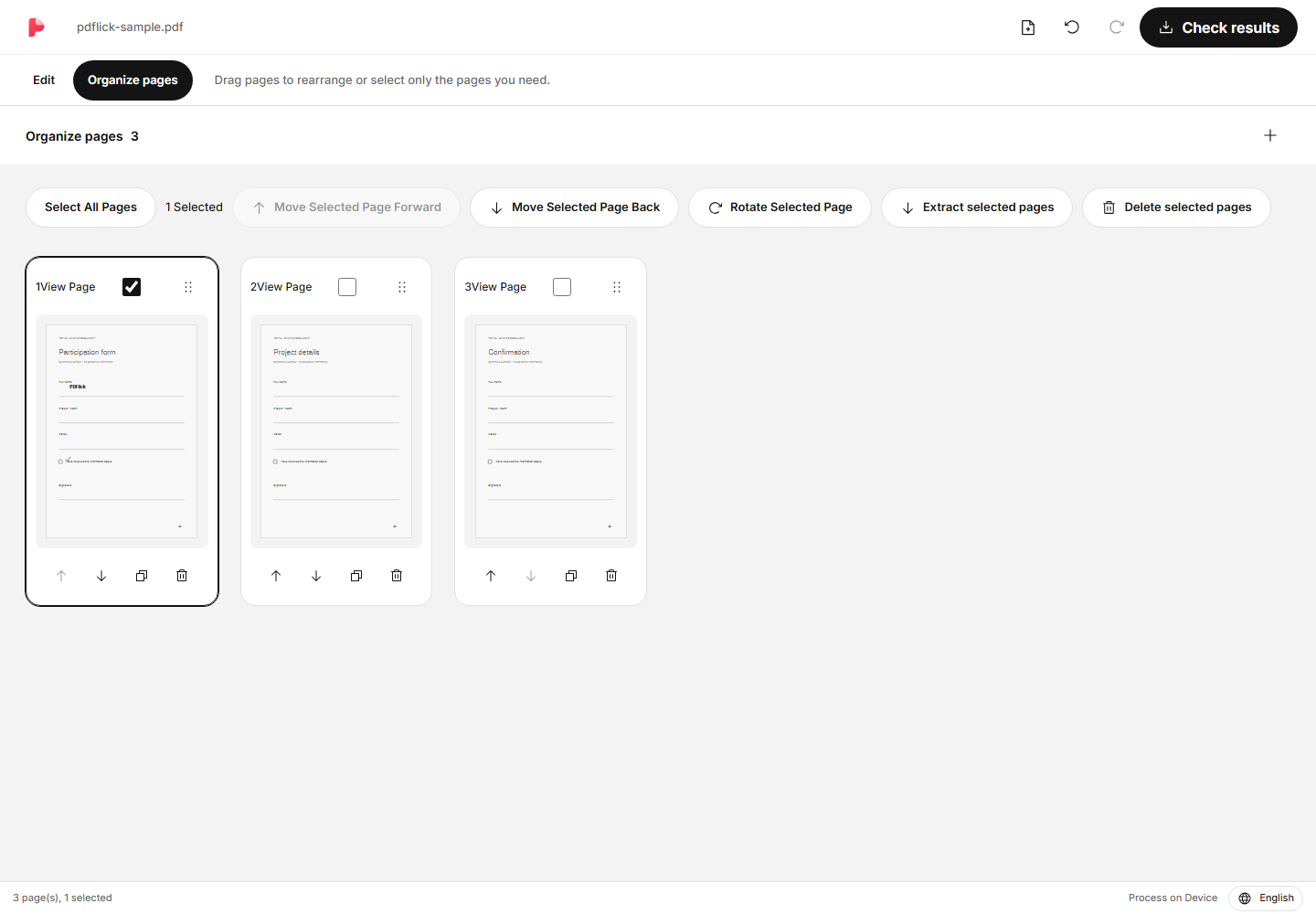
The original file is not modified. It manages the editing order and page information, and creates a new PDF when downloading.
Change page order by dragging
Grab the move handle on the page card and drag it to the desired position. When you move the card, the page number displayed on the screen will reflect the new order. If you move it incorrectly, you can undo it using the undo button.
Any text or signature already added to the page is also linked to that page and moves together. After changing the order, check both the thumbnails and the document editing screen.
Change the order with the keyboard and buttons
If dragging is difficult, use the Move Forward or Move Backward buttons on the page card. You cannot move forward from the first page or move backward from the last page.
You can focus on the handle using the keyboard, grab it with the Space key, adjust its position with the arrow keys, and release it with the Space key. This method is useful when it is difficult to move the mouse precisely.
Page duplication and document editing
If you need the same page multiple times, press the duplicate button on the card. The added text and signature will also be duplicated, and the elements on the duplicated page can be edited separately afterward.
If you want to add more content, go back to the top Edit. Documents can be scrolled continuously, and you can navigate using the page list or by entering the page number. Your work will be preserved even if you switch between editing and arranging pages.
Save combined PDF
Check the number of pages and the order at the top Check Results and then download. Combining multiple files does not automatically compress them or reduce image resolution.
If you only need certain pages, please refer to the Page Extraction, Rotation, and Deletion Guide. Extracting selected pages allows you to create a separate result while keeping the entire combined and organized work intact.
Now apply it to my document.
The file content is processed in the current browser.
Getting Started with PDF Merge·Organize Pages