In PDFlick, you can draw your signature directly with the Signature tool and click on the desired location in the document to insert it. After inserting, you can move the signature body by dragging it and adjust its size using the corner handles.
Scope of the signature function
This feature allows you to place a handwritten signature or a signature image on a document. It does not provide functions for digital signatures using a certificate, verifying the signer's identity, or requesting signatures from others. If the recipient requires a specific signing method, check those requirements first.
The PDF containing the password PDF and the digital signature cannot be edited. Keep the original important file separately and download a new edited version.
Draw and insert a signature
- Open the document in PDF Signature·Seal.
- Select the signature at the top.
- Sign with a mouse, pen, or touch in the drawing area.
- Select the pen color and thickness. Use Undo Stroke for a stroke you made by mistake, and Erase All when you want to start drawing from the beginning.
- Press Use Signature.
- Click or tap where you want to place the signature in the document.
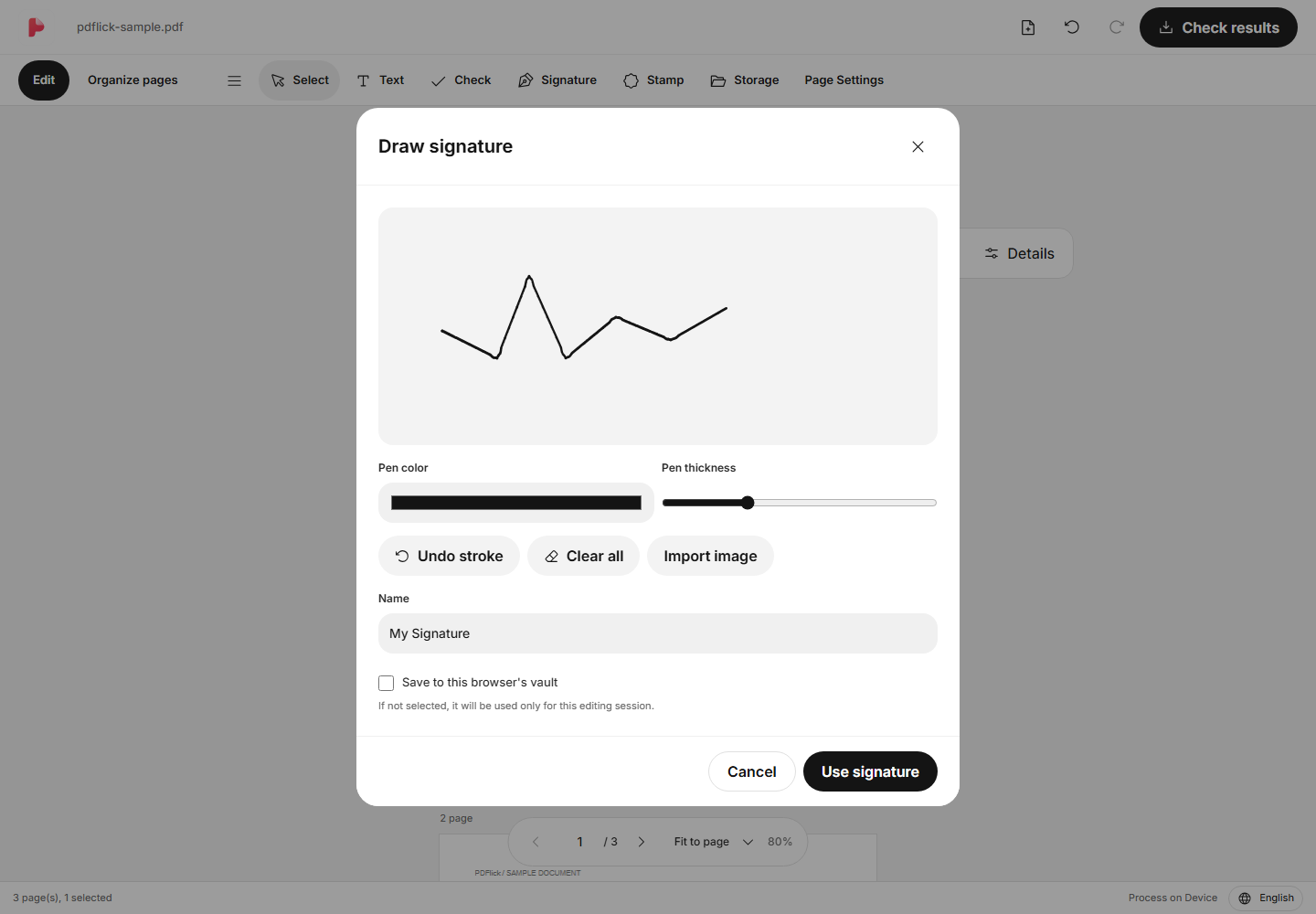
The transparent margin around the signature is cleaned up. It does not recreate the strokes or adjust the shape. Empty drawing areas cannot be used as a signature.
Aligning position and size
Click the placed signature to select it, then drag the body of the signature to move it. Drag the corners to resize while maintaining the aspect ratio. Use the rotation handle to adjust the angle.
To move it precisely, use the arrow keys. When positioning with the keyboard, focus on the page editing area and press Enter to center it. Press Esc to cancel the placement.
Clicking on an empty area of the document will deselect it. To delete a signature, select it again and press Delete or use the delete button in the selection tool.
Importing a signature as an image
If you already have a prepared PNG·JPEG signature, select Import Image in the signature window. On the single-color background cleanup screen, you can compare the original and the result before placing it in the document. Pay particular attention to the result if the photo's lighting or background color is uneven.
The method for cleaning up an image is the same as how to remove the white background from a stamp image.
Storing signatures for future use
If you directly select Save to this browser's library in the window where you create a signature, you can use it again in the same browser. The default is not to save. Even if saving to the library fails, you can still continue placing it in the current document.
The storage is not linked to your account or the cloud. If you clear your browser data or change devices, it may become unavailable, so please separately back up any necessary signatures to PNG.
Check before saving
After checking the position, angle, and size of the signature in Check Result, download it. If the signature appears too blurry or small, go back to edit, adjust it, and generate the result again. It is also recommended to open and check the downloaded PDF in the viewer you will actually use.
Now apply it to my document.
The file content is processed in the current browser.
Getting Started with PDF Signature·Stamp