If you insert a stamp with a white background directly into PDF, it can cover the surrounding content. Load the image with Stamp, make the solid background transparent, then compare the original and the result and place it in the document.
What kind of image should I prepare?
Prepare PNG or JPEG. The more uniform the background color, the easier it is to separate based on color differences. If it is a PNG that already has a transparent background, do not unnecessarily increase the removal intensity and maintain the original strokes.
This feature removes solid-color backgrounds by referencing the colors at the edges of the image. It is not a function that recognizes the shape of objects with AI or restores the strokes of stamps. Paper shadows, patterns, or backgrounds of colors similar to stamps may not be cleanly separated.
Organizing stamp images
- Open the document where you want to insert the seal in PDF Signature·Seal.
- Select the stamp and load the PNG·JPEG files.
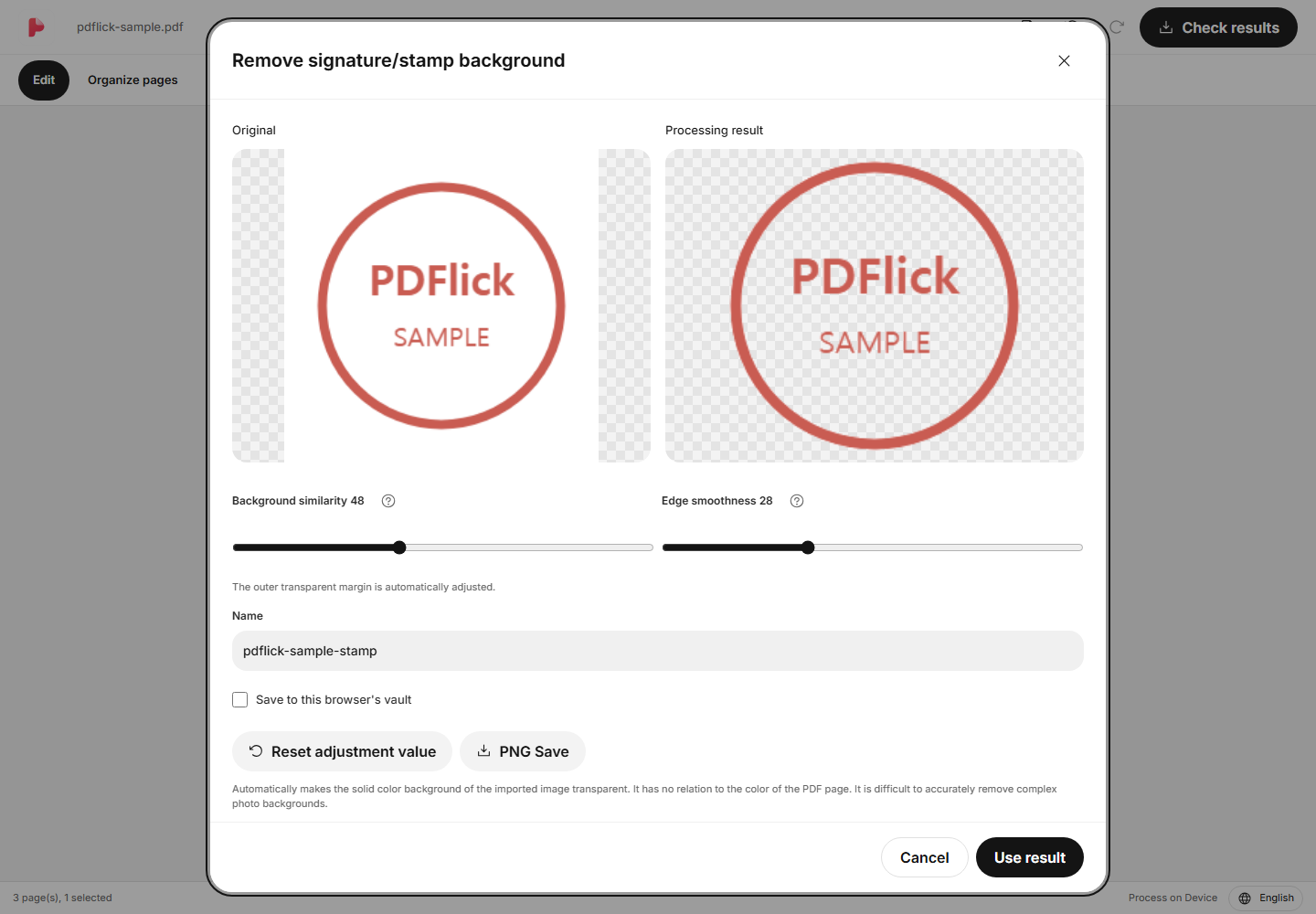
- Check the original and the result side by side in Remove Signature/Stamp Background.
- Gradually adjust the similarity and edge smoothness of the background removal.
- Check the automatically trimmed transparent margins and any remaining strokes. You can see adjustment instructions by clicking the ? button next to the slider.
- Click Use Result and then click where you want to place it in the document.
If strokes disappear or the background remains
Expanding the removal range removes more background, but lightly colored strokes may also be erased. Conversely, narrowing the range preserves strokes but may leave some of the background. Compare based on the stamp border, small text, and light areas.
- Reduce the removal range if strokes become thin or disappear.
- If the edges are rough, slightly adjust the edge smoothness.
- Both bright and dark solid backgrounds can be removed. The PDF page color does not affect processing. If the background is complex or no strokes remain in the result, using the result will be blocked.
- If the result becomes worse, reset the settings with reset adjustments or cancel and select the original image again.
Setting the number high does not always mean good results. First, check if the small letters inside the seal remain.
Put it in PDF and adjust the position
When you place a stamp on a document, a selection border will appear. Grab the body to move it and adjust the size from the corners. The aspect ratio is maintained, so the stamp will not stretch horizontally or vertically.
If there is a lot of transparent space inside the image, the selection box may be larger than the stamp visible on the screen. During the trimming step, the transparent space is automatically reduced, making it easier to fit it to the signature or stamp area.
Using transparent PNG and storage box
The organized images can be saved separately with a transparent PNG. If you plan to reuse them in addition to document editing, keep the PNG files. Browser library storage only happens when you select it yourself.
When you place a library item into a document, it creates a copy to use in the editing session. Even if you later delete the original library item, the stamp you have already placed remains in the current document.
Check the result PDF
Check in Check Results to ensure that the stamp does not unintentionally cover the document content and that the strokes are not too faint, then download it. Also, see if small text is readable when reduced to the final size.
If you want to use a signature drawn by yourself, please refer to the Signature Drawing Guide.
Now apply it to my document.
The file content is processed in the current browser.
Getting Started with PDF Signature·Stamp