If you select the PNG and JPEG images, you can change to the PDF page in the browser. In Page Setup, choose the paper and margins, and to prevent the image from being cut off, use Fit to Page.
Supported images and default settings
Supports PNG·JPEG. JPG extensions are also included in JPEG. It does not provide functions to recognize text in photos (OCR) or edit content in the background.
The default paper is A4 according to the image orientation, with 24pt margins and full view alignment. Check whether the original image is in a long vertical or horizontal format, and adjust it according to the intended purpose of printing.
Creating PDF from an image
- In Image PDF Conversion, select PNG · JPEG.
- When the editor opens, check the page and page settings.
- Select the paper from A4, Letter, or the original.
- Select either 'Fit' or 'Fill' and adjust the margins.
- After checking the actual PDF in Check Results, download it.
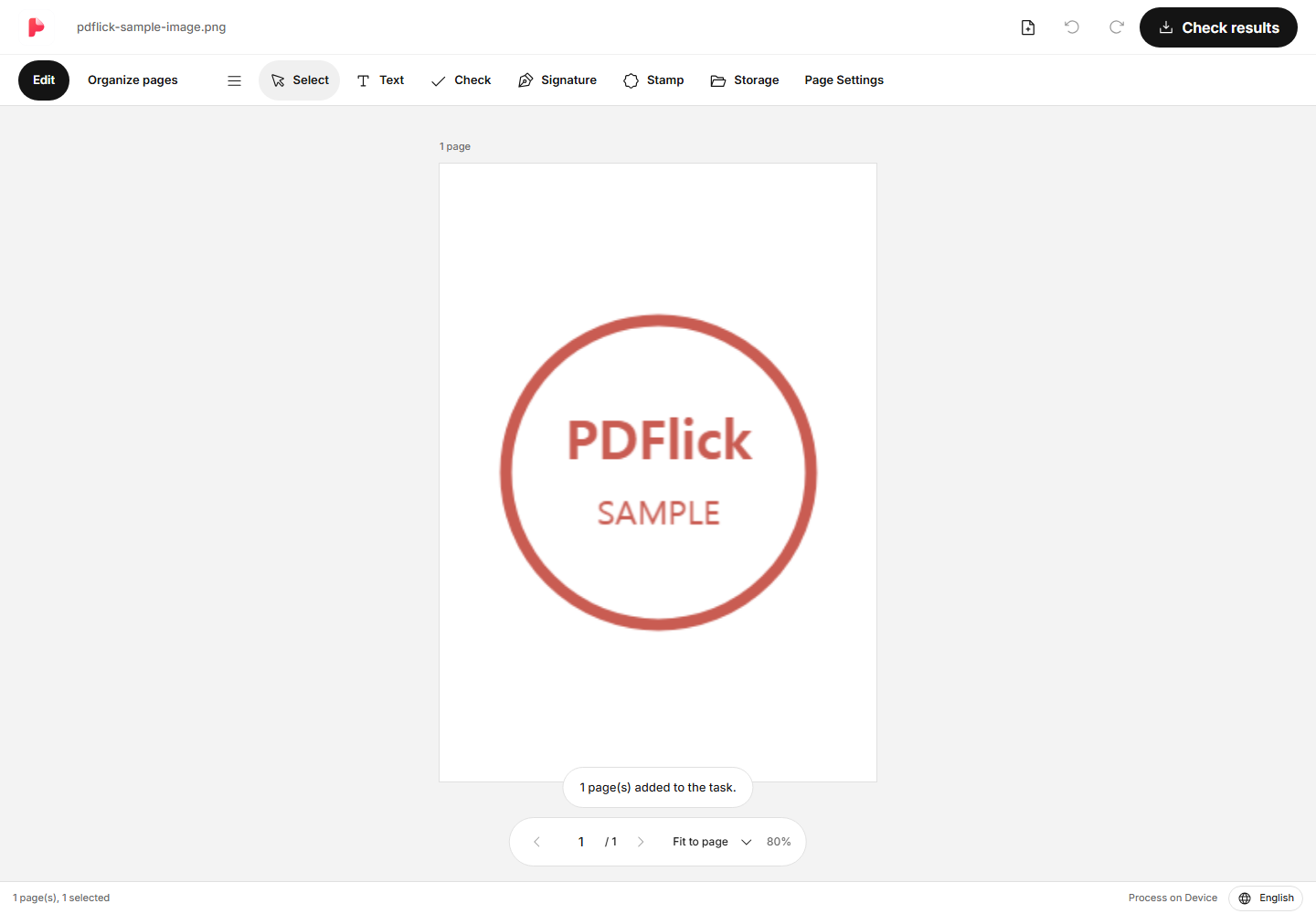
A4·Letter·Which one of the originals should we choose?
A4 and Letter are used when a specific document paper size is needed. The Original option is used when creating a page that follows the proportions of the image. The Original option does not automatically guarantee the printing resolution of the photo or the physical size of the capturing equipment.
If the aspect ratios of multiple images are different, the empty space around the images may vary even if you select the same A4. Check each page and adjust individually if necessary.
The difference between 'View All' and 'Fill'
Fit to screen adjusts the entire image to fit within the margins. If the photo and paper have different proportions, empty space will appear at the top and bottom or on the sides. It is suitable when you need to preserve the corners or text of a document photo.
Fill fills the area within the margins with an image. If the aspect ratio does not match, part of the image will be cropped. If important text or stamps are at the edges, check that the result has not been cut off. The same cropped area is applied in both the editor and the output PDF.
Reducing the margins increases the area occupied by the image. Increasing the margins creates space around the image. After changing the settings, judge by looking at the entire page.
Grouping multiple photos into one PDF
You can select multiple images or continue attaching files. If you go to Organize Pages at the top, you can change the order while viewing the thumbnails. PDF It is also possible to arrange the original pages and image pages together.
If you need a repeating page, duplicate it, and delete pages you don't need. For detailed instructions on changing the order, refer to How to merge and organize multiple PDF.
When the text is blurry or the file is large
If you enlarge a small image, its clarity may decrease. This editor does not restore details that are not in the image or automatically make it sharper. If it is an important document, prepare a clearer original photo.
The download results will display the actual file size. You can compare it with the target size, but it does not automatically compress images or reduce quality. Finally, check the orientation and cropping on the result page before saving.
Now apply it to my document.
The file content is processed in the current browser.
Getting Started with Image PDF conversion