If you only need part of PDF, select the pages in Organize Pages and then click Extract Pages. It creates a separate PDF with the selected pages while keeping the original work intact. Rotation and deletion are applied to the current work.
The difference between extraction and deletion
Extraction is the process of creating a new copy of the required pages. For example, it is used when you want to save only the pages needed for submission from among multiple pages. Even after extraction, the entire document in the editor is retained.
Deleting removes a page from the current editing work. It does not erase the original file itself, but when you create the complete result afterward, the deleted page will not be included. If you delete something by mistake, you can undo it to restore it.
Extract only the necessary pages
- Open PDF from Page Organization.
- Check the selection box for the required page card.
- Check the number of selections at the top.
- Click Extract Selected Pages.
- After checking the number of pages and the content of the results, download them.
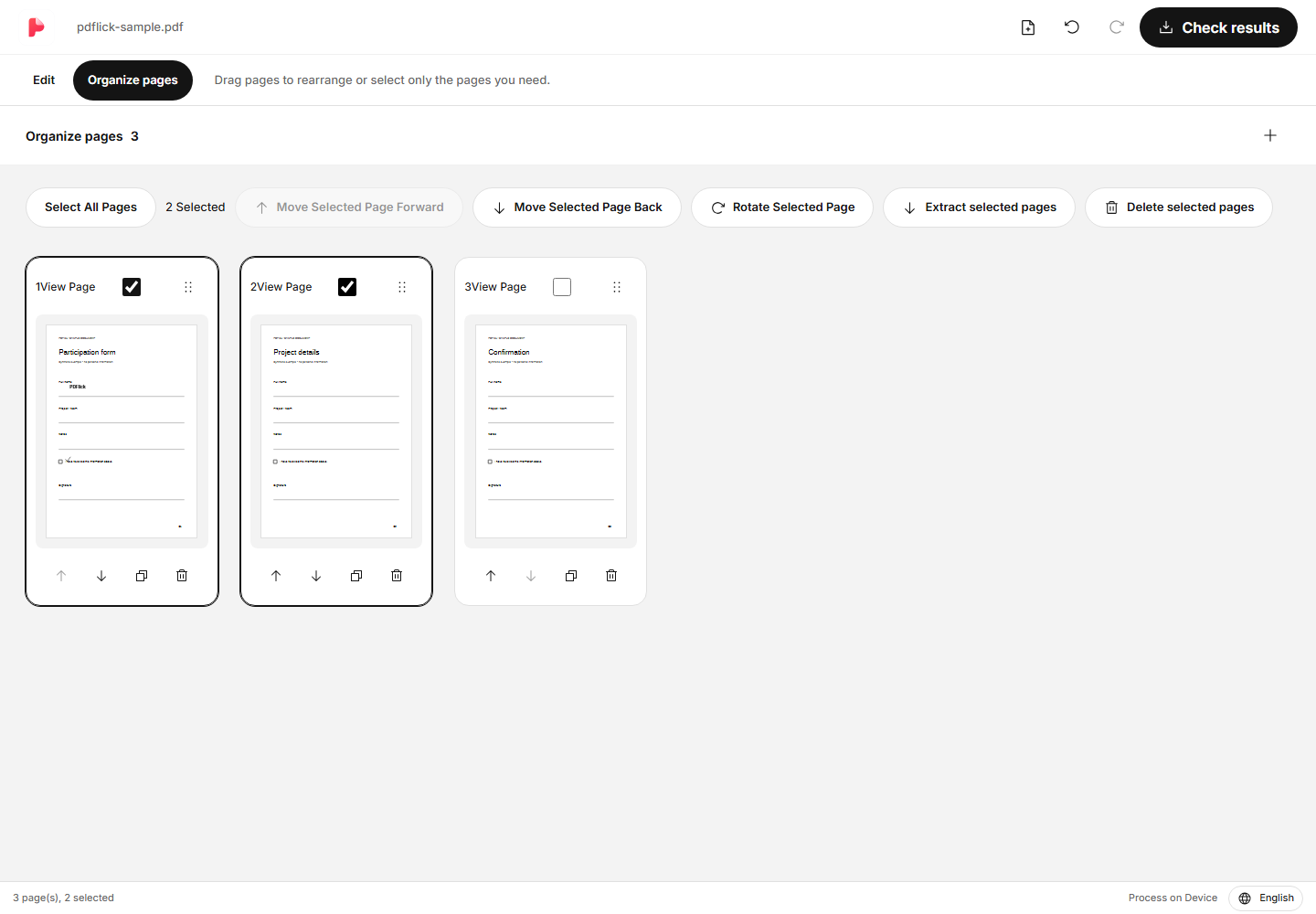
The extraction results follow the current document order. To rearrange in the selected order, change the order on the page organization screen before extraction. If no pages are selected, the extract button cannot be used.
Rotate the page sideways
Select the pages to rotate and click Rotate Selected Pages. Each click rotates them by 90 degrees. To rotate only certain pages, specify the target precisely using the selection box.
You can add text, checkmarks, and signatures to rotated pages. Since the screen's vertical direction and the document coordinates differ, adjust the position and check the result PDF. The editor places elements according to the page orientation.
Individual deletion and delete selected pages
The delete page button on the card only deletes one page of that card. It does not delete other pages even if they are also selected.
To delete multiple pages, check the selection boxes and then use Delete Selected Pages at the top. Any elements added to those pages will also be removed. If you press undo immediately after deleting, you can restore the pages and the elements associated with them.
When the result is displayed in an outdated state
If the page order or content changes after generating the results, the previous results will be marked as not up-to-date. In this state, the current edits and the downloaded file may differ, so you need to regenerate the results.
After checking the extracted results, to save the entire PDF, go back to edit and click Check Results at the top again. The results extracted earlier do not replace the entire document.
Check before saving
- Check if the number of pages of the actual results matches the selected number.
- We check whether the first and last pages are within the intended range.
- Check the rotation direction, signature/stamp position, and cutting warnings.
- Documents that contain important forms or links should also be opened in the viewer where the downloaded file will actually be used.
If you want to merge more files or change the order, please refer to the PDF Merge Guide.
Now apply it to my document.
The file content is processed in the current browser.
Getting Started with PDF Merge·Organize Pages